CompTIA Login Guide 2026: Access Your Account, Certifications, CertMaster & Exam Dashboard
Trying to find the correct CompTIA login can be confusing because one CompTIA account may connect you to several different services. Depending on what you need to do, you may be looking for your main account, certification records, CertMaster training, exam scheduling, continuing education information, or another part of the CompTIA dashboard.
The good news is that you usually do not need a completely separate account for every CompTIA service. CompTIA Central acts as an important account and single sign-on entry point, while certain services may open in separate CompTIA or authorized testing platforms.
How do I log in to my CompTIA account? Start with your existing CompTIA account credentials. After authentication, use the account area that matches your goal: certification management, training access, or exam management. If a service redirects you to another platform, follow that authenticated path rather than creating a new account unnecessarily.
This guide explains which CompTIA account area you need, how CertMaster and certification records fit into the system, how exam scheduling works, and what to try when your CompTIA login is not working.
CompTIA Login: Which Account or Dashboard Do You Need?
The correct login depends on what you are trying to accomplish.
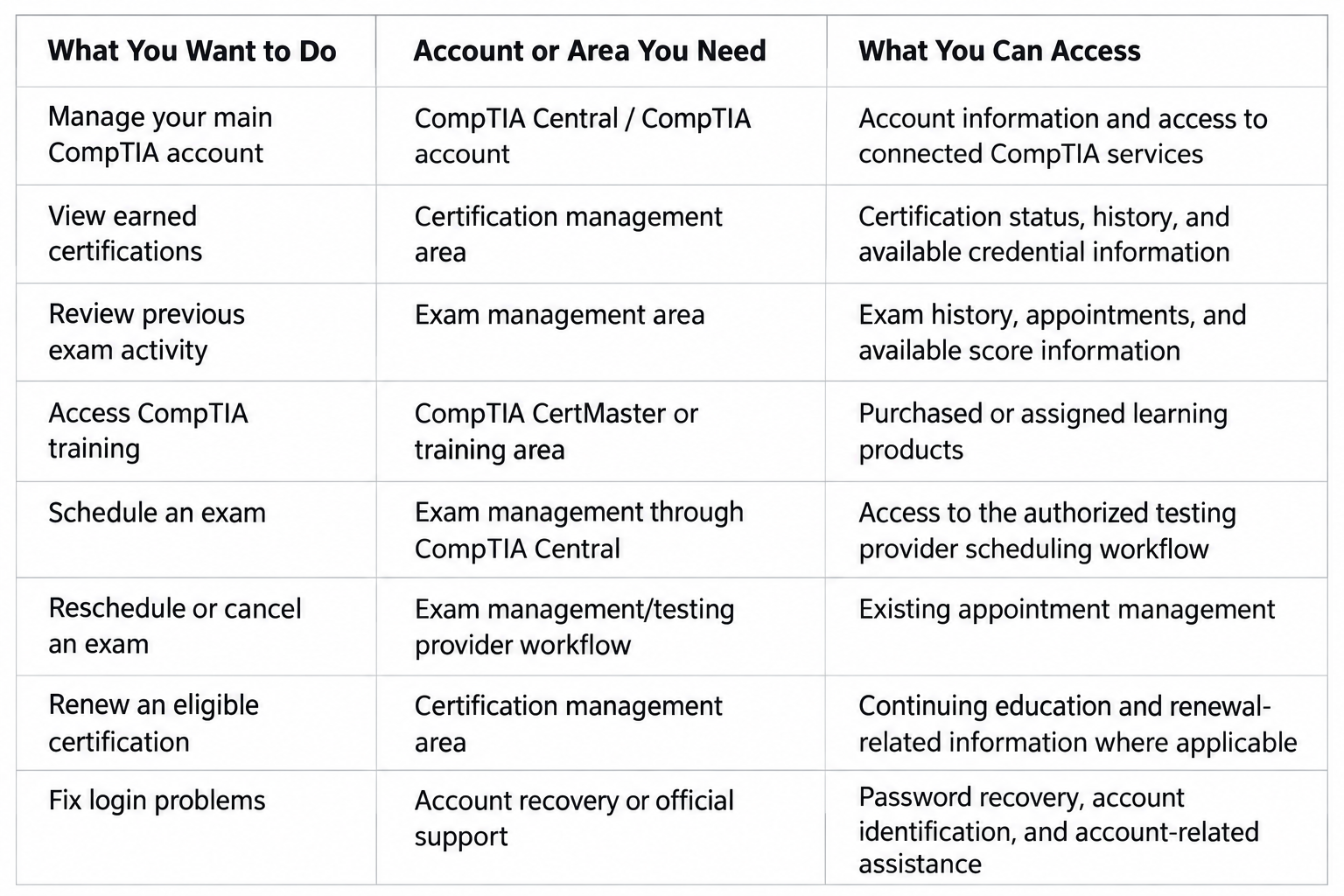
The reason this can feel complicated is that CompTIA Central, certification management, CertMaster, and the testing platform perform different jobs.
Think of your main CompTIA account as the starting point. From there, you may be passed into another authorized system depending on whether you are managing training, certifications, or an exam appointment.
You may also encounter both the names Pearson VUE and Pearson Professional Assessments while managing an exam. Pearson has been transitioning its testing brand, so seeing either name does not necessarily mean you have reached the wrong service.
How to Access Your CompTIA Account Login
For most candidates, the safest approach is to begin with the account they already used when purchasing training, registering for an exam, or earning a certification.
Signing In With Your Existing CompTIA Account
A normal sign-in process looks like this:
- Open the official CompTIA account sign-in area.
- Enter the email address associated with your CompTIA account.
- Complete the required authentication.
- After signing in, select the account area related to what you need to do.
- Follow any authenticated redirect if CompTIA sends you to certification management, CertMaster, or its authorized exam provider.
If you have previously taken a CompTIA exam, avoid creating a new account simply because you cannot remember your login. Your existing certification and exam records may already be associated with the older account.
Creating a CompTIA Account for the First Time
If you are new to CompTIA, create your account before purchasing training or scheduling an exam.
Use accurate personal information, particularly your legal name. Exam candidates should make sure their registration information is consistent with the identification requirements that apply to their appointment.
Also choose an email address that you expect to keep.
A personal email address may be more practical than a temporary school or employer address because your certification history can remain relevant long after you leave a particular organization.
How to Find Your CompTIA Dashboard
After signing in, your available account options can vary depending on what products and certifications are associated with your profile.
Your CompTIA dashboard or account environment may provide access to areas related to:
- Exams
- Certifications
- Training products
- Account information
- Certification renewal or continuing education
- Purchased or redeemed products
CompTIA interfaces can change, so focus on the purpose of each section rather than expecting every screen to look exactly like screenshots from an older tutorial.
What Is My CompTIA Login Used For?
Your CompTIA account functions as the identity connecting you with many CompTIA services.
Depending on your activity, you may use it to manage:
- Personal account information
- Certification records
- Exam-related services
- Training products
- CertMaster access
- Certification renewal activities
- Previous certification history
Some of these functions operate inside the broader CompTIA account environment, while others may open a separate learning, certification-management, or testing system.
That distinction is important.
Having a working my CompTIA login does not mean every CompTIA service must appear on the exact same screen.
CompTIA Certification Login: How to View Your Certifications
If you have already earned a certification, use the certification-management area associated with your existing CompTIA account.
Checking Your Certification Status
After signing in, open the section for managing certifications.
Look for the certification you earned and check the status shown there. Depending on the credential and your account, certification management may also provide information related to expiration, renewal, history, or credential documentation.
Avoid relying only on an exam score report as proof that every certification requirement has been completed.
For example, CompTIA A+ requires the necessary Core exams for the applicable certification version. Passing one Core exam alone does not award the full A+ certification.
Viewing Your CompTIA Certification History
Your certification-management area is also the logical place to look for previous credential history.
This is especially useful for professionals who earned CompTIA A+, CompTIA Network+, CompTIA Security+, or another CompTIA credential several years ago and want to confirm their records.
If nothing appears, first confirm that you are using the same CompTIA account associated with the original exams.
Accessing or Downloading a CompTIA Certificate
Where available, certification management may provide access to downloadable certification documentation or other credential information.
The exact interface may change, so rather than relying on an old tutorial’s button names, sign in through your current CompTIA account and open the certification-management area.
What If Your Certification Is Missing?
A missing certification does not automatically mean that the record has been lost.
Check the following first:
- Are you using the same email or account used for the exam?
- Is your name and personal information correct?
- Could you have created more than one CompTIA account?
- Have all requirements for the certification been completed?
- Was the exam completed very recently?
- Does your exam history show the correct candidate activity?
Example: You passed CompTIA Security+, but the account you just created does not show the certification. Before assuming the certification disappeared, check whether the exam was registered under another CompTIA account or email address.
If you still cannot locate the record, contact official CompTIA support rather than creating additional accounts.
CompTIA Central Login: What Is It?
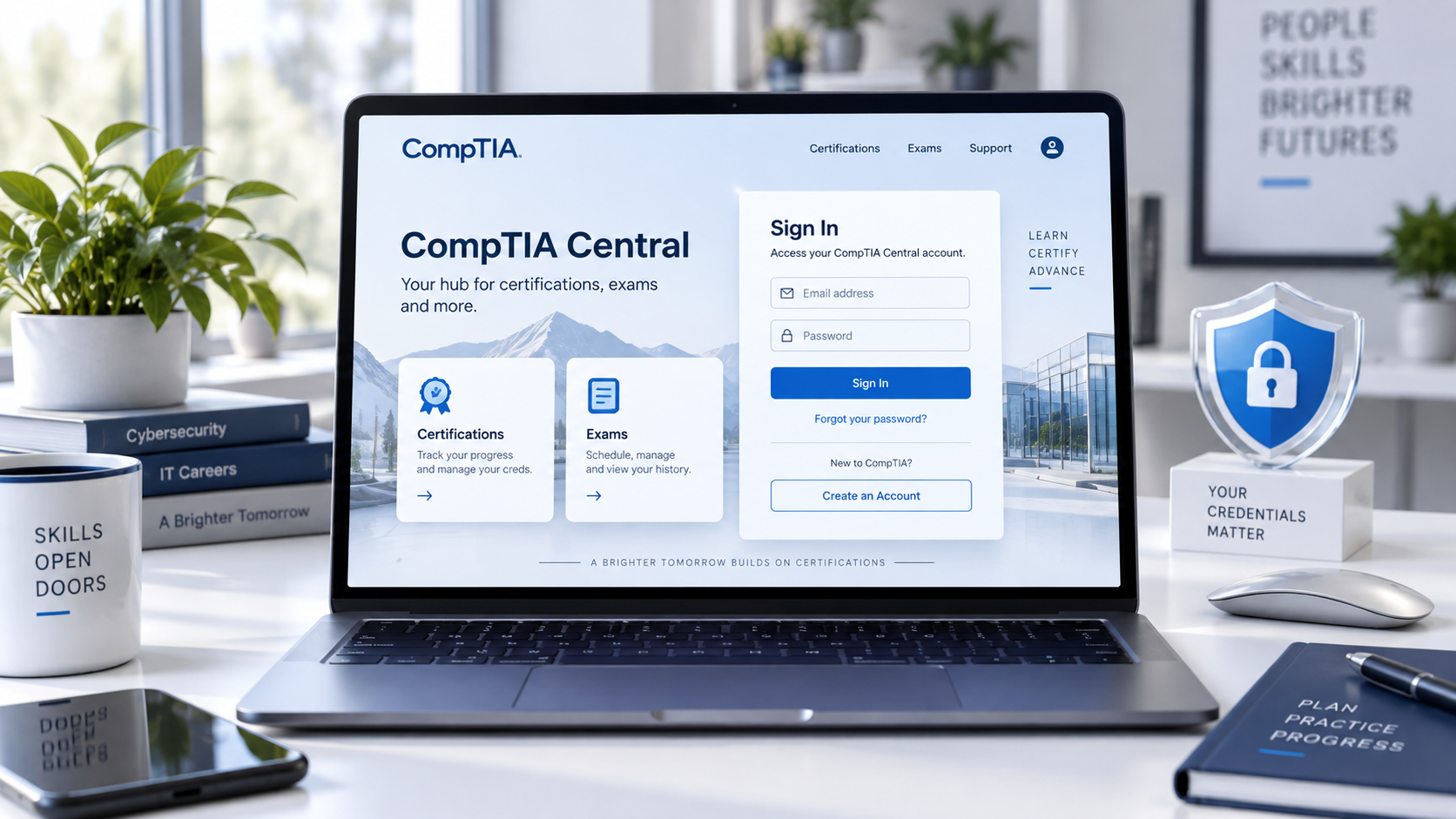
CompTIA Central is an important part of the current CompTIA account experience.
It serves as a central authenticated environment connecting users with services such as testing, certification management, and training.
That means someone searching for CompTIA Central login may actually be trying to accomplish several different tasks:
- Schedule an exam
- Open certification information
- Access training
- Manage their account
- Reach another authenticated CompTIA service
You may therefore sign in through CompTIA Central and then be redirected to another platform.
That behavior is normal when different systems handle different functions.
Older guides, screenshots, or forum posts may also use different terminology. When instructions conflict, rely on the current purpose of the service rather than assuming an old navigation label will still appear exactly as shown.
CompTIA CertMaster Login: Accessing Your Training
CompTIA CertMaster is CompTIA’s training ecosystem.
Depending on the certification, product generation, bundle, or organization providing your training, you may encounter products such as CertMaster Perform, CertMaster Learn, CertMaster Practice, and lab-based learning components.
Product availability and naming can differ between certifications, so do not assume every exam offers exactly the same CertMaster combination.
What Is CompTIA CertMaster?
CertMaster products can support different parts of the learning process.
For example:
CertMaster Learn has been used for structured self-paced learning.
CertMaster Practice focuses on knowledge reinforcement and exam preparation.
CertMaster Labs or integrated lab components provide hands-on practice environments.
CertMaster Perform combines learning and practical skill development for supported certifications.
Always check the specific training product associated with your certification rather than purchasing something based only on the CertMaster name.
How to Access a CertMaster Product
If a CertMaster product is associated with your account:
- Sign in using the account connected with the purchase or redemption.
- Open the training section associated with your CompTIA account.
- Locate the training product you purchased, redeemed, or were assigned.
- Follow the provided access path into the relevant learning platform.
Some products may open in a dedicated learning environment.
What If You Purchased CertMaster but Cannot See It?
Several possibilities are worth checking.
You may have:
- Purchased it using another email address
- Redeemed an access key under another account
- Not completed product activation
- Received access through a school or employer
- Reached the end of the product’s access period
- Signed into an account different from the one used for the purchase
Example: A school provides you with CompTIA CertMaster access using your student email, but you sign in using a personal CompTIA account. Your training may not appear because the access was assigned to the school-linked account.
Confirm which email received the training invitation or access information before creating another account.
CompTIA SSO Login Explained
SSO means single sign-on.
The purpose of single sign-on is to allow one authenticated account identity to connect with multiple related services without requiring entirely separate credentials for every system.
For CompTIA users, this helps connect areas such as training, testing, and certification management.
A CompTIA SSO login therefore does not necessarily mean everything runs inside one application. It means your CompTIA identity can be used as the authentication starting point for connected services.
Why You May Be Asked to Sign In Again
Being prompted for authentication again does not always indicate a problem.
Possible reasons include:
- Your session expired
- A connected service requires fresh authentication
- Browser cookies were cleared
- Security controls require another sign-in
- You opened the service in another browser or device
- A redirect could not reuse your existing session
If repeated sign-in prompts create a loop, troubleshooting your browser session is a good next step.
What to Do If CompTIA SSO Is Not Working
Try these basic fixes:
- Close unnecessary CompTIA tabs.
- Sign out completely.
- Open a private or incognito browser window.
- Sign in again using the email associated with your account.
- Allow the normal redirect to complete.
- If necessary, try another supported browser or device.
If the problem continues across browsers and devices, the issue may require official account support.
How to Access Your CompTIA Exam Dashboard
Your CompTIA account and the exam-delivery system have different responsibilities.
You normally begin from the exam-management area associated with CompTIA Central. The scheduling workflow then connects you with CompTIA’s authorized testing provider.
Finding Your Exam Information
Before exam day, confirm that you can access your appointment information.
Check:
- The exam name and code
- Appointment date
- Appointment time
- Testing method
- Test-center or online delivery details
- Candidate information
- Applicable exam instructions
Do this well before your appointment rather than trying to recover your login minutes before check-in.
Scheduling a CompTIA Exam
The general process is:
- Sign in to your CompTIA account.
- Open the exam-management area.
- Begin the scheduling process.
- Continue into the authorized testing-provider workflow.
- Select your exam.
- Choose an available delivery method.
- Select an appointment.
- Review the details before confirming.
Depending on the exam, you may be able to choose between an authorized test center and online testing.
Rescheduling or Canceling an Exam
Existing appointments are generally managed through the authorized testing workflow connected with your CompTIA account.
Do not assume that cancellation or rescheduling deadlines are identical for every situation.
Check the policy associated with your actual appointment before making changes.
Online Testing vs. Test Center Exams
Online testing and test-center testing can use the same general account and scheduling ecosystem but have different exam-day requirements.
Online candidates may need to complete equipment and environment checks, while test-center candidates need to follow the location’s arrival and identification procedures.
Preparing for a CompTIA exam? Once your appointment is organized, review the current exam objectives and use realistic practice questions to identify topics that still need work before test day.
CompTIA Login Not Working? Try These Fixes
If your CompTIA login is not working, start with the simplest causes before creating another account.
Check Your Email Address
The most common source of confusion is often the account itself.
Think about which email you used when you:
- Purchased your exam voucher
- Scheduled an exam
- Redeemed CertMaster
- Earned an earlier certification
- Registered through a school
- Registered through an employer
Trying the correct existing account is safer than creating a duplicate.
Reset Your Password
Use the password-recovery option associated with the current sign-in screen.
Make sure the reset request is being sent to the email connected with your actual CompTIA account.
Also check spam or junk folders if the recovery message does not appear.
Check for Multiple CompTIA Accounts
You may have accidentally created separate accounts using personal, work, and school email addresses.
This can result in certification records appearing under one identity and training products under another.
If you suspect duplicate accounts, seek official support rather than attempting to move certification information yourself.
Clear Browser Cookies and Cache
Old authentication data can occasionally interfere with sign-in sessions or redirects.
Clearing site cookies and cached data can help when:
- The page continually reloads
- You return to the login screen after authentication
- A connected service opens the wrong session
- SSO redirects repeatedly
Try a Private or Incognito Window
A private window starts with a cleaner browser session and can quickly show whether stored cookies are causing the problem.
If your login works privately but not in your normal window, stored browser data is a likely factor.
Disable Browser Extensions Temporarily
Privacy, script-blocking, password-management, or security extensions can occasionally affect authentication pages.
Temporarily disabling them is a troubleshooting step—not a permanent requirement.
Check Whether SSO Is Redirecting Incorrectly
If you successfully enter your credentials but repeatedly return to the login page, the authentication may be succeeding while the redirect session is failing.
Try signing out completely and starting again from a clean browser session.
Try Another Browser or Device
If the same credentials work elsewhere, the problem may be local to your browser configuration rather than your CompTIA account.
Confirm Your Account Has Been Activated
Newly created accounts or certain training registrations may require email verification or activation.
Check your original registration messages before repeatedly attempting to sign in.
Contact CompTIA Support When Necessary
If standard troubleshooting fails, prepare useful information before contacting support:
- Your full name
- Account email address
- Candidate information if available
- Certification or exam involved
- Exact error message
- Screenshot of the problem
- Approximate date and time it occurred
- Browsers or devices already tested
Avoid sending passwords or other sensitive authentication information.
What to Do If You Forgot Which Email You Used for CompTIA
Losing access to an old email address can complicate account recovery, particularly if that email is associated with certification history.
Check likely addresses in this order:
- Current personal email
- Previous personal email
- School email
- Current work email
- Previous employer email
Search accessible inboxes for previous CompTIA exam confirmations, training messages, certification communications, voucher purchases, or account notifications.
Example: You earned CompTIA Network+ while working for a previous employer and registered with your company email. You no longer have access to that mailbox. Rather than opening another CompTIA account and assuming your certification will automatically appear, contact official support and explain the account-recovery situation.
Can You Have More Than One CompTIA Account?
It is possible for someone to end up with duplicate accounts, but multiple CompTIA identities can create unnecessary confusion.
Different accounts may separate:
- Certification history
- Exam activity
- Training purchases
- Access-key redemptions
- Continuing education activity
- Account recovery information
If your certifications appear under one account and CertMaster appears under another, do not attempt unsupported workarounds.
Official account support is the safer route for resolving duplicate-account issues.
How to Find Your CompTIA Certification Records After Passing an Exam
After completing an exam, keep the account you used for registration.
Your exam activity and resulting certification records need to be associated with the correct candidate identity.
Check your account for:
- Exam activity
- Certification status
- Certification-management information
- Available certificate or credential documentation
- Renewal information where applicable
Do not assume something is wrong if every part of the account does not update simultaneously after you finish an exam.
Also remember that passing an individual exam does not always mean a certification has been completed.
For CompTIA A+, for example, the required exams for the applicable version must be completed before the full credential is awarded.
If your records remain missing after reasonable processing time, confirm the account and candidate details and then contact official support.
CompTIA Login Before Exam Day: Quick Checklist
Complete this check before your appointment:
- Confirm your CompTIA login works
- Make sure you are using the correct candidate account
- Verify your personal information
- Confirm the exact exam and appointment
- Review the current testing requirements
- Confirm whether your exam is online or at a test center
- Verify the identification requirements that apply
- Make sure your registration name matches the required identification
- Confirm access to any testing-platform credentials
- Run required system checks for online testing
- Review check-in instructions
- Resolve account problems well before the appointment
Do not make account recovery part of your exam-day plan.
Once these administrative steps are finished, use the remaining time for targeted review. A timed CompTIA practice exam can help reveal weak objectives that deserve one more study session before the real test.
Preparing for Your CompTIA Exam After You Log In
Getting your CompTIA account login working and scheduling the exam are administrative tasks. They do not tell you whether you are ready for the technical content.
Before taking the exam:
- Download and review the current official exam objectives
- Identify weak domains
- Study unfamiliar technologies and terminology
- Work through realistic practice questions
- Read explanations for answers you miss
- Practice under timed conditions
- Review patterns in your mistakes
- Spend extra time on weak objectives instead of repeatedly reviewing comfortable topics
For example, if your CompTIA Security+ practice results consistently show problems with security architecture or incident response, focus your remaining study time there rather than restarting the entire syllabus.
Globalcerts can be used as an additional practice resource for candidates who want to work through CompTIA practice exams, review answer explanations, and identify areas that may need more study.
The goal of practice should be understanding—not memorizing questions.
Frequently Asked Questions About CompTIA Login
What is the official CompTIA login used for?
Your CompTIA login connects your account identity with services such as certification management, exam activity, training, and other CompTIA resources. Some services may open in another connected platform after authentication.
How do I access my CompTIA account?
Sign in using the email address connected with your existing CompTIA account. After authentication, choose the appropriate area for exams, certifications, training, or account management.
Where can I see my CompTIA certifications?
Open the certification-management area connected with your CompTIA account. This is where earned certification information and related credential details may be available.
What is my CompTIA login?
Your CompTIA login is the account identity you created or used when interacting with CompTIA services. If you have previously taken an exam, use the existing account associated with that candidate activity instead of automatically creating another one.
Is CompTIA Central the same as my CompTIA account?
CompTIA Central is part of the central account and authentication experience. It helps connect users with testing, certification management, training, and other CompTIA services.
How do I log in to CompTIA CertMaster?
Use the account associated with your CertMaster purchase, assignment, or access-key redemption. After signing in, open your training products and follow the appropriate CertMaster access path.
Why is my CompTIA login not working?
Possible causes include using the wrong email address, an incorrect password, expired browser sessions, stored cookies, duplicate accounts, SSO redirect problems, or an account-recovery issue. Start by confirming the correct email and testing a password reset or private browser window.
What should I do if I forgot my CompTIA account email?
Search old personal, school, and employer inboxes for CompTIA messages. If you cannot recover the original address or no longer have access to it, contact official CompTIA support rather than creating multiple new accounts.
Can I have two CompTIA accounts?
Duplicate accounts can exist, but they may split certifications, exam records, training purchases, and account information. If you believe you have multiple accounts, resolving the situation through official support is safer than continuing to create new profiles.
Where can I find my CompTIA exam information?
Sign in to your CompTIA account and open the exam-management area. Existing appointment and testing information can then be accessed through the authorized testing workflow.
How do I reset my CompTIA password?
Use the password-recovery option on the current CompTIA authentication page and follow the instructions sent to the email address associated with your account.
Why is my certification not showing in my CompTIA account?
First check that you are using the account associated with the exam and that all requirements for the certification have been completed. Very recent exam activity may also require processing. If the record remains missing, contact official support with your candidate and exam details.
Final Thoughts
Finding the correct CompTIA login is easier once you separate the different tasks.
Use your main CompTIA account and CompTIA Central as the starting point for connected services. Certification management handles credential information, CompTIA CertMaster covers training products, and exam management connects candidates with the authorized testing workflow.
If your login fails, verify the account email before assuming you need another account. Duplicate accounts can make certification records, training access, and exam history harder to locate.
Once your account and exam appointment are organized, shift your attention back to preparation. Review the official objectives, work on weak domains, and use CompTIA practice exams to test your knowledge before exam day.
Candidates preparing for CompTIA A+, CompTIA Network+, CompTIA Security+, or other CompTIA certifications can explore Globalcerts practice resources as an additional way to review objectives, work through exam-style questions, and identify topics that need further study.